🚀Understanding Package Manager🚀
🧭Introduction:🧭
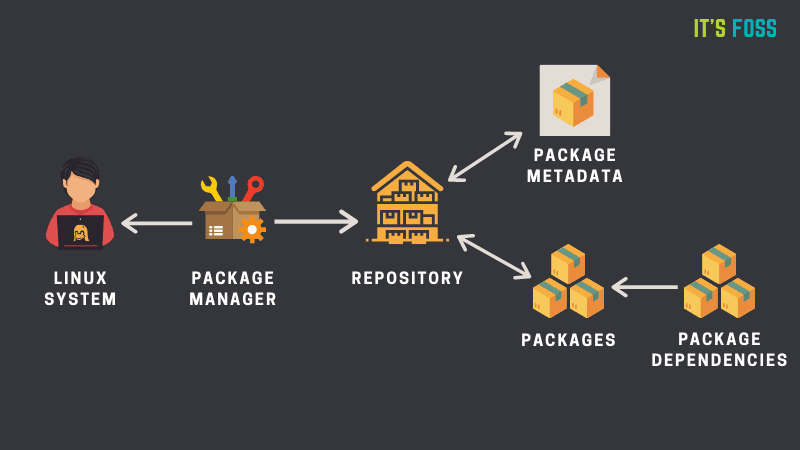
🎉Welcome to day 07 of #90daysof DevOps. In this blog, we will deep dive into package managers and try to understand them.
Package Managers play a crucial role in managing software dependencies, ensuring that all required components are installed correctly. Package managers are commonly found in Linux-based systems, but they are also utilized in other operating systems like macOS (Homebrew) and Windows (Chocolatey)🍫.
🧭Different types of package managers:🧭
- APT (Advanced Package Tool):
Used in Debian and Debian-based distributions like Ubuntu. Common APT commands include apt-get and apt.
- Yum (Yellowdog Updater Modified):
Found in Red Hat-based distributions such as Fedora and CentOS. Yum commands include yum install and yum update.
DPKG (Debian Package Manager):
It is a low-level package management tool used on Debian-based Linux distributions, including Debian itself, Ubuntu, Linux Mint, and others. It works directly with Debian package files (with
.debextension) and provides the foundation for higher-level package managers likeapt, which is the more commonly used tool for package management on Debian-based systems.
🧭Why we use package manager:🧭
Package managers are mostly used for installing, updating, configuring, and removing software packages on a computer.
- To install packages on the system,
user@hostip:~$ sudo yum install docker.io  # for linux
user@hostip:~$ sudo apt install docker.io #for ubuntu
To update installed packages,
user@hostip:~$ sudo apt-get update- To remove a package and its configuration files using
apt, you can use thepurgeoption along with theremovecommand. The full command looks like this:
- To remove a package and its configuration files using
user@hostip:~$ sudo apt purge package_name
🧭Installation of Docker.io and Jenkins using the package manager:🧭
Install docker on Ubuntu,
user@hostip:~$ sudo apt install docker.io -y
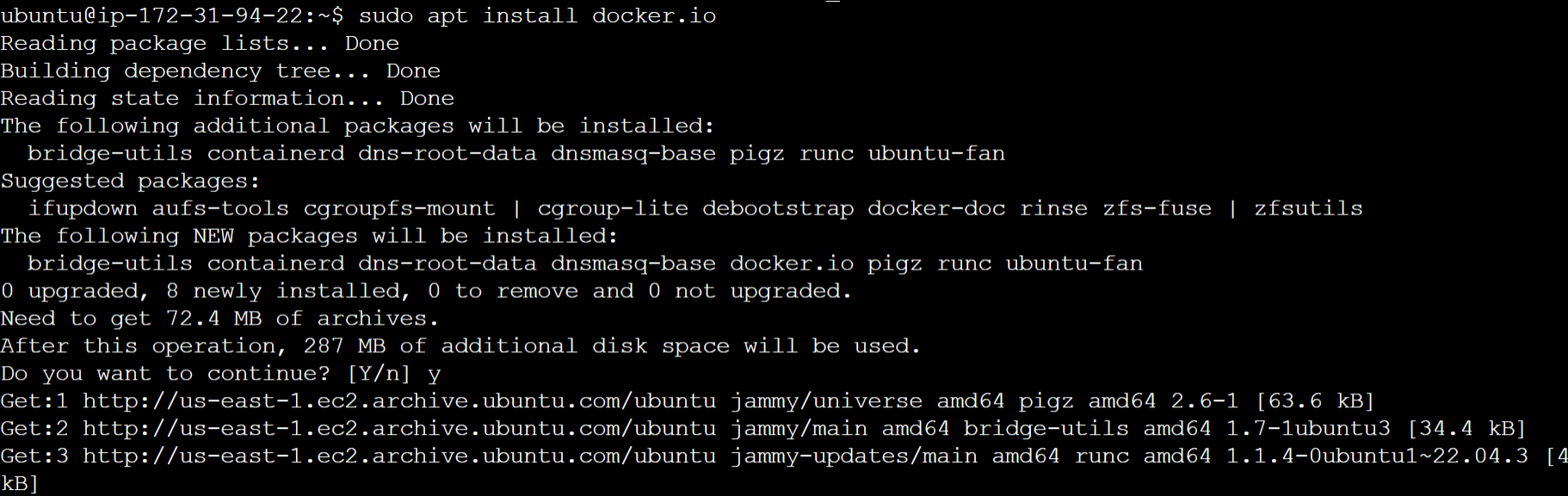
🖍️Note: You can check whether your installation is completed or not using the docker --version.
- Install Jenkins on Centos:
user@hostip:~$ sudo yum install java-1.8.0-openjdk-devel /
sudo wget -O /etc/yum.repos.d/jenkins.repo https://pkg.jenkins.io/redhat-stable/jenkins.repo /
sudo rpm --import https://pkg.jenkins.io/redhat-stable/jenkins.io.key /
sudo yum install jenkins
🧭Understanding the systemctl, systyem and service commands:🧭
📌systemctl, systemd and service are all related to managing services in Linux systems, but they serve different purposes and are used in different contexts. Let's understand the differences between them,
📌systemctl:
systemctl is a command-line utility used for managing services in Linux distributions that use systems, such as most modern versions of Ubuntu, CentOS, Fedora, and Debian.
📌Starting, Stopping, and Restarting Services:
systemctl start service_name
systemctl stop service_name,
systemctl restart service_name.
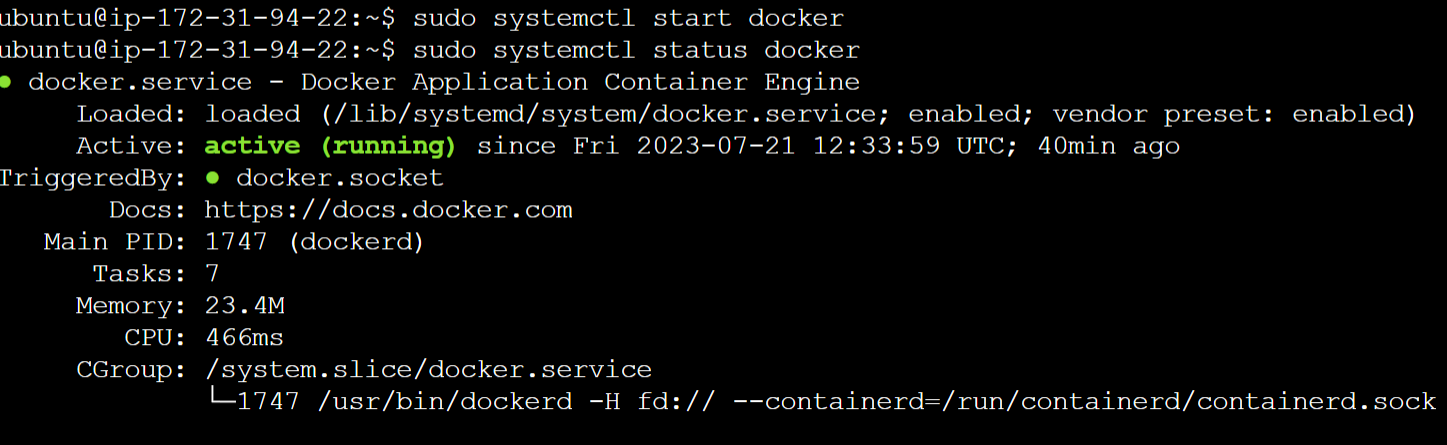
We have already installed docker on our system let's check its status using the above commands,
user@hostip:~$ sudo systemctl start docker
user@hostip:~$  sudo systemctl status docker
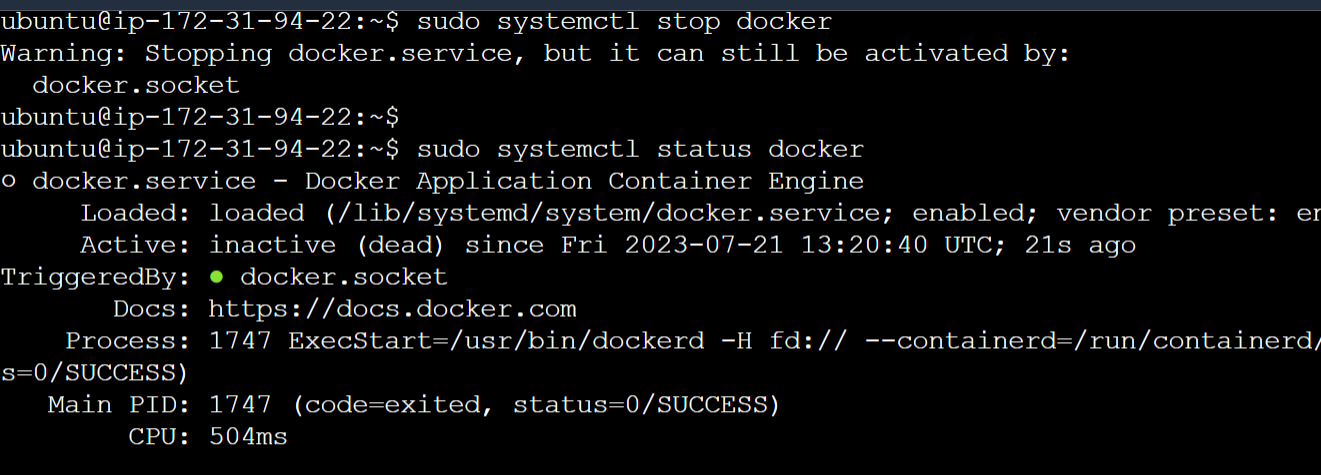
📌Now let's stop the docker service,
user@hostip:~$ sudo systemctl stop docker
user@hostip:~$  sudo systemctl status docker
📌Enabling and Disabling Services at Boot:
systemctl enable service_name
systemctl disable service_name
📌Viewing Service Logs:
systemctl status -n 100 service_name (shows last 100 lines of the service logs).
📌Systemd:
systemd is a service manager that provides a range of functionalities to manage the startup, operation, and shutdown of Linux systems. It replaces the traditional SysV init system and has become the default initialization system in many Linux distributions.
📌Service:
service is a legacy command often used in older Linux distributions that do not use systemd as their default system manager. It was commonly used with the SysV init system for managing services.
It works the same way as systemctl, in the commands just replace systemctl with service.
In summary, systemctl is the preferred and more comprehensive tool for managing services in modern Linux distributions that use systemd as their system and service manager. Understanding and utilizing systemctl will empower system administrators and users to efficiently manage services, streamline their workflows, and maintain stable and secure Linux environments.
🔅Conclusion:🔅
Above mentioned commands are used in system administration every day, also for troubleshooting service finding logs and debugging purposes we need these commands. I encourage you to try this on your own to gain expertise.
if you find this valuable please like, share and comment. Also, you can follow me on hashnode, and LinkedIn(www.linkedin.com/in/rushikesh-ghate-525060199) for such amazing content.
Thanks for reading..!


